KiCad Integration
Keep one parts library in PartsBox and use it directly inside KiCad. Your PartsBox parts appear in the KiCad Symbol Chooser with their manufacturer part numbers, footprints, and other fields, so the parts you place in a schematic are the same parts you stock, price, and build from. When you import the finished BOM back into PartsBox, every line matches its part exactly, with nothing to reconcile by hand.
Parts data belongs in a database, not a CAD tool
Symbols and footprints belong in KiCad. Everything else about a component — the manufacturer part number, stock, offers, custom fields — belongs in a parts database. KiCad can hold custom fields, but keeping them consistent across projects is difficult, and the data still lives apart from your inventory.
Passive components make this worse. For many parts, especially passives, the specific MPN does not matter at design time: you enter a value such as 10k, and the exported BOM carries only 10k to describe the component. That is hard to price and purchase from, and it pushes the work of choosing an actual part — a specific 6k3 resistor, a specific 1μF X5R capacitor — to the worst possible moment.
Meta-parts solve this. Create a meta-part for a passive, associate it with a KiCad symbol and footprint, and place it in your schematic. When you are ready to purchase, add one real part with a specific MPN to the meta-part. PartsBox suggests further substitutes ranked by popularity, which you add with a single click. You can change the set of substitutes over time without touching the schematic, the PCB, or the BOM, so the design keeps its intent — the part the design calls for — rather than freezing an MPN that may go out of stock.
How it works
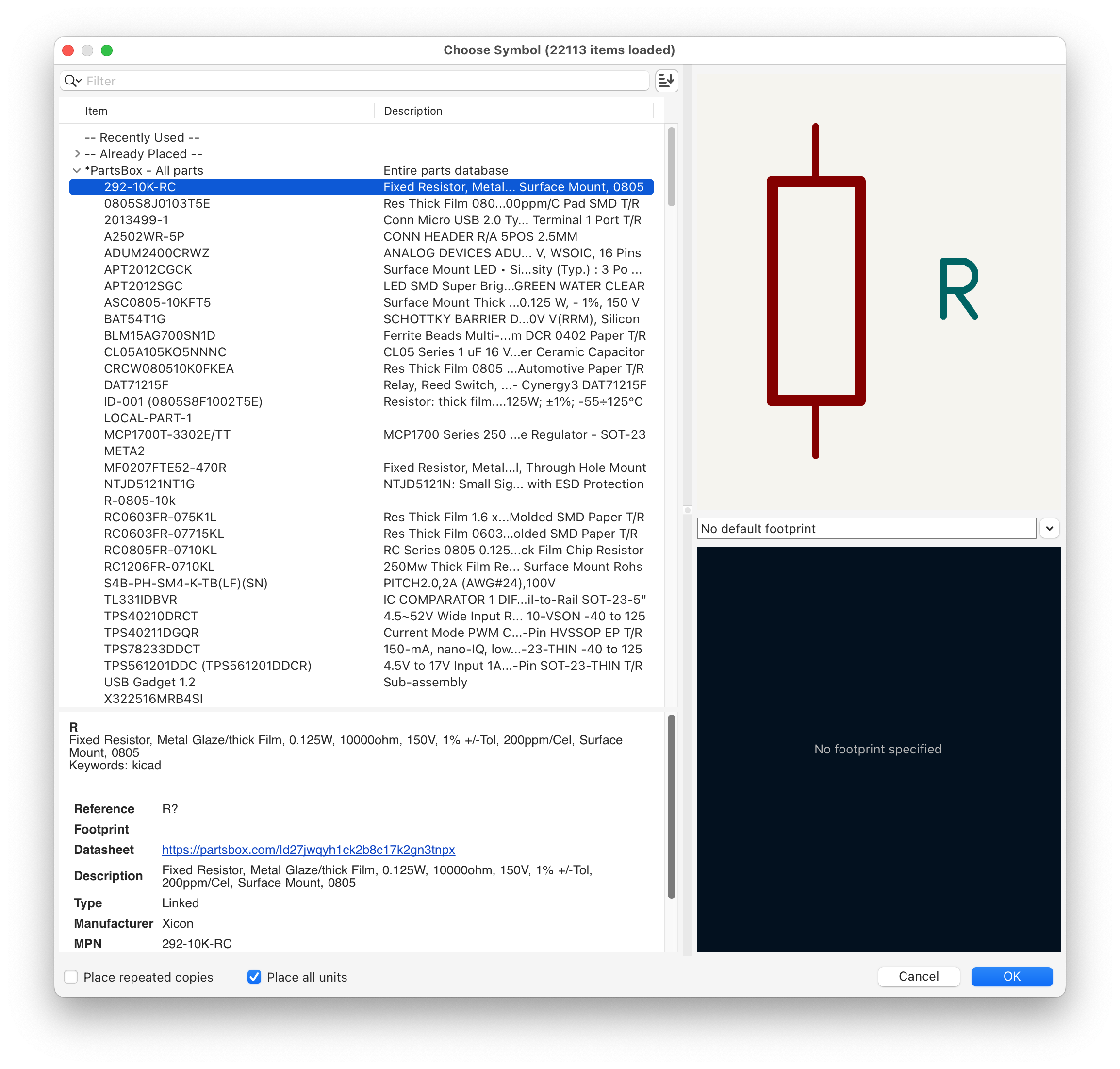
Your KiCad symbols and footprints stay where they are. PartsBox acts as a data source that references symbols and footprints from your standard KiCad libraries, and presents a chosen part of your parts library to KiCad, organized into categories. Select a component from the PartsBox library in KiCad and it fills the schematic symbol with data from PartsBox: manufacturer part number, value, footprint, and any other fields you map.
The library is read online over HTTP, as needed. Once it is set up, it needs no ongoing effort — the categories you configured appear in the KiCad Symbol Chooser, ready to place with all their mapped fields.
To set it up:
- Create an API key in PartsBox.
- Open Settings | CAD Integration | KiCad and click 'Enable'. Choose which parts to show to KiCad.
- Define how those parts are organized into categories.
- Map PartsBox fields to KiCad fields.
PartsBox generates a configuration file with a .kicad_httplib extension. Place it in one of your KiCad library directories; it holds the API key and tells KiCad how to connect.
Categories
PartsBox presents your library to KiCad as categories — subsets of your database that appear as separate browsable sections in the Symbol Chooser. Each category is defined with the PartsBox filter system, so you can build one from tags, part names, specifications, custom fields, or any combination of filters.
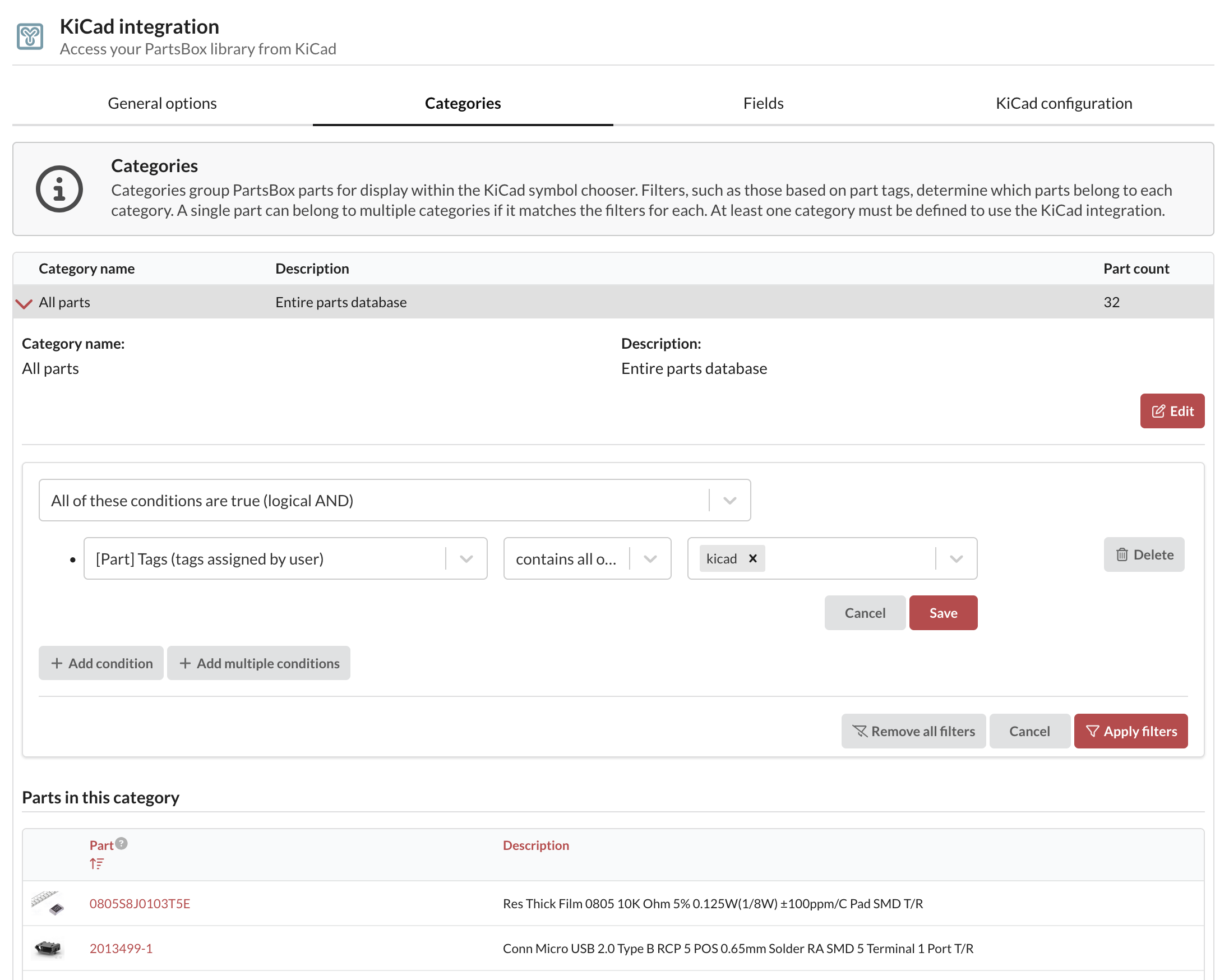
A part can appear in more than one category. You can also apply one initial filter to every part before category-specific filtering, which helps when you want to expose only a small subset of your parts.
Field mappings
Field mappings connect any PartsBox field to any KiCad field. A default set is provided, with three required mappings:
- KiCad symbol — required by KiCad to match the part to a symbol in your library.
- Part ID Anything™ code — mapped to a PartsBox ID field in KiCad, for automatic BOM matching.
- Part ID Anything™ URL — lets you press
don a component to open its information page in your browser.
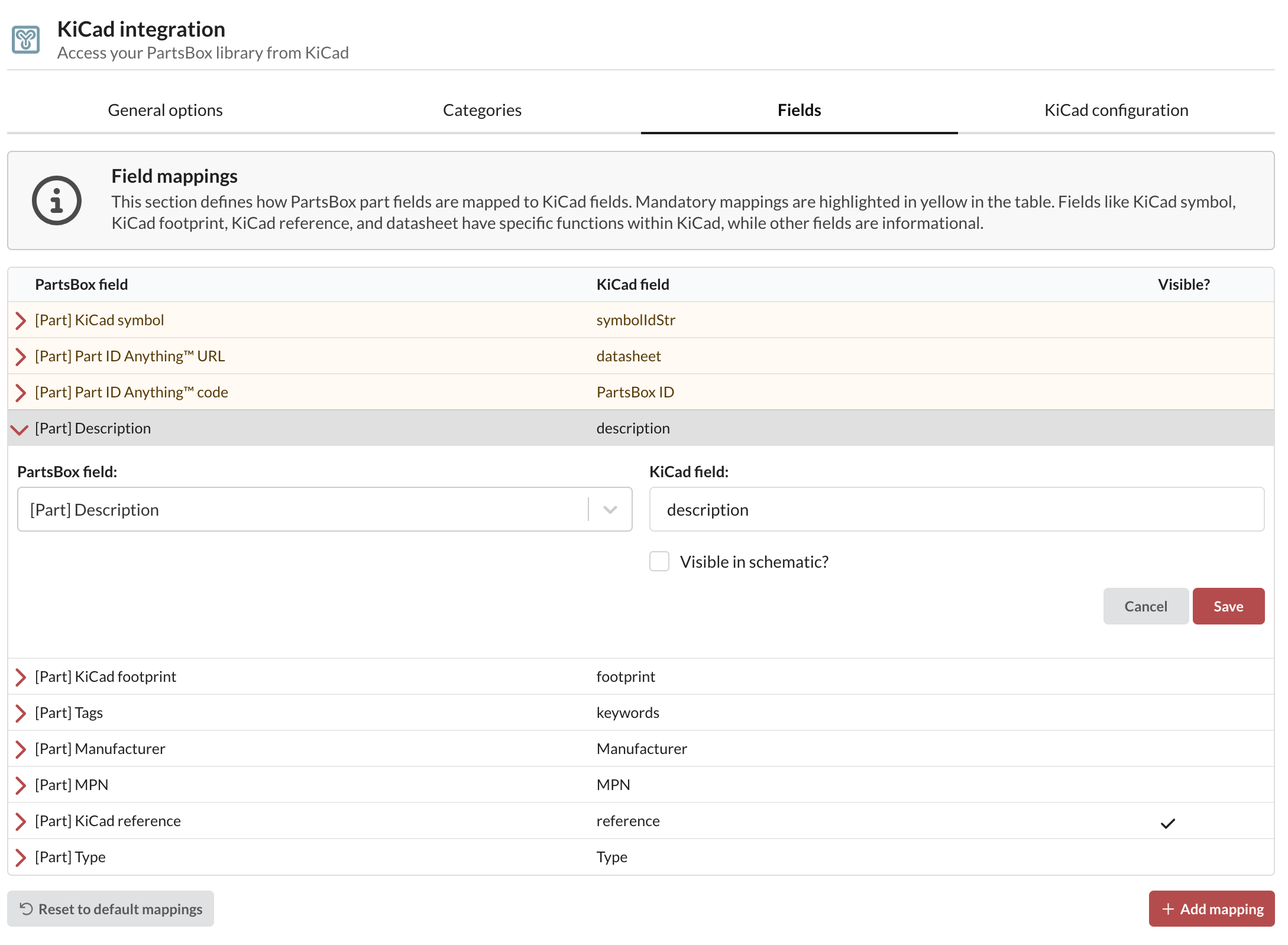
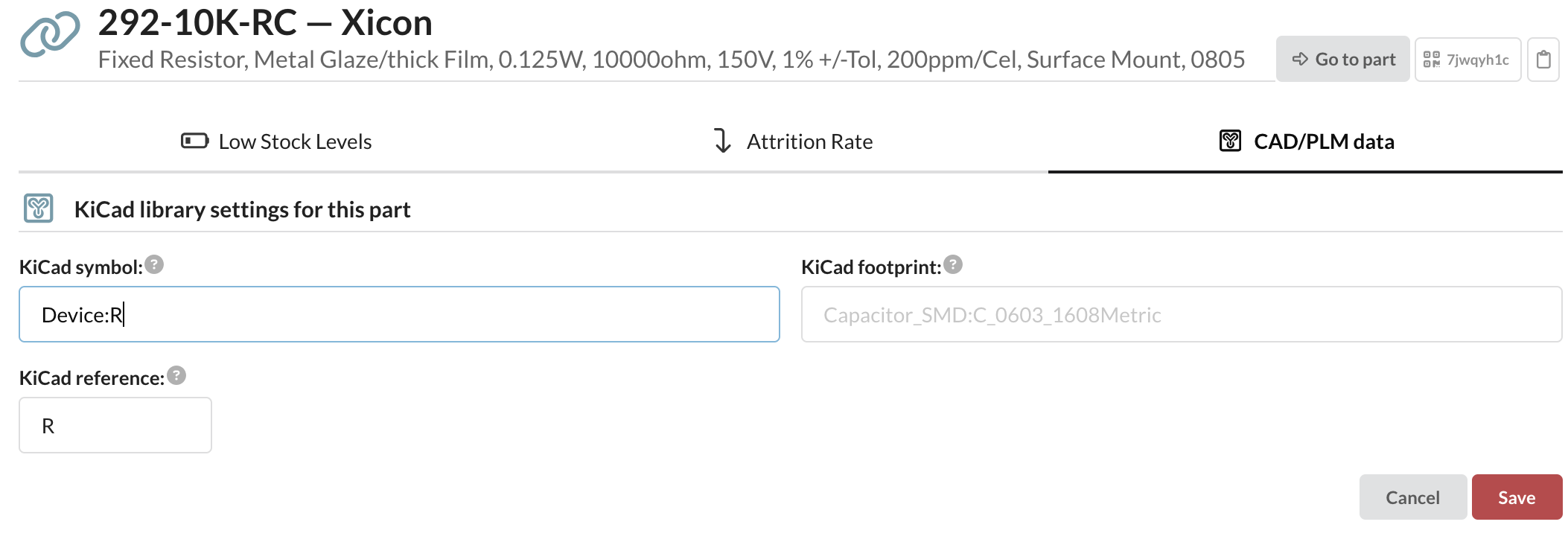
Everything else is optional, though mapping the KiCad reference and footprint is worth doing. For each part you use in KiCad, set its symbol, footprint, and KiCad reference in Part Settings | CAD/PLM data on the part screen.
Adding the library in KiCad
In KiCad, open Manage Symbol Libraries and add the .kicad_httplib file:
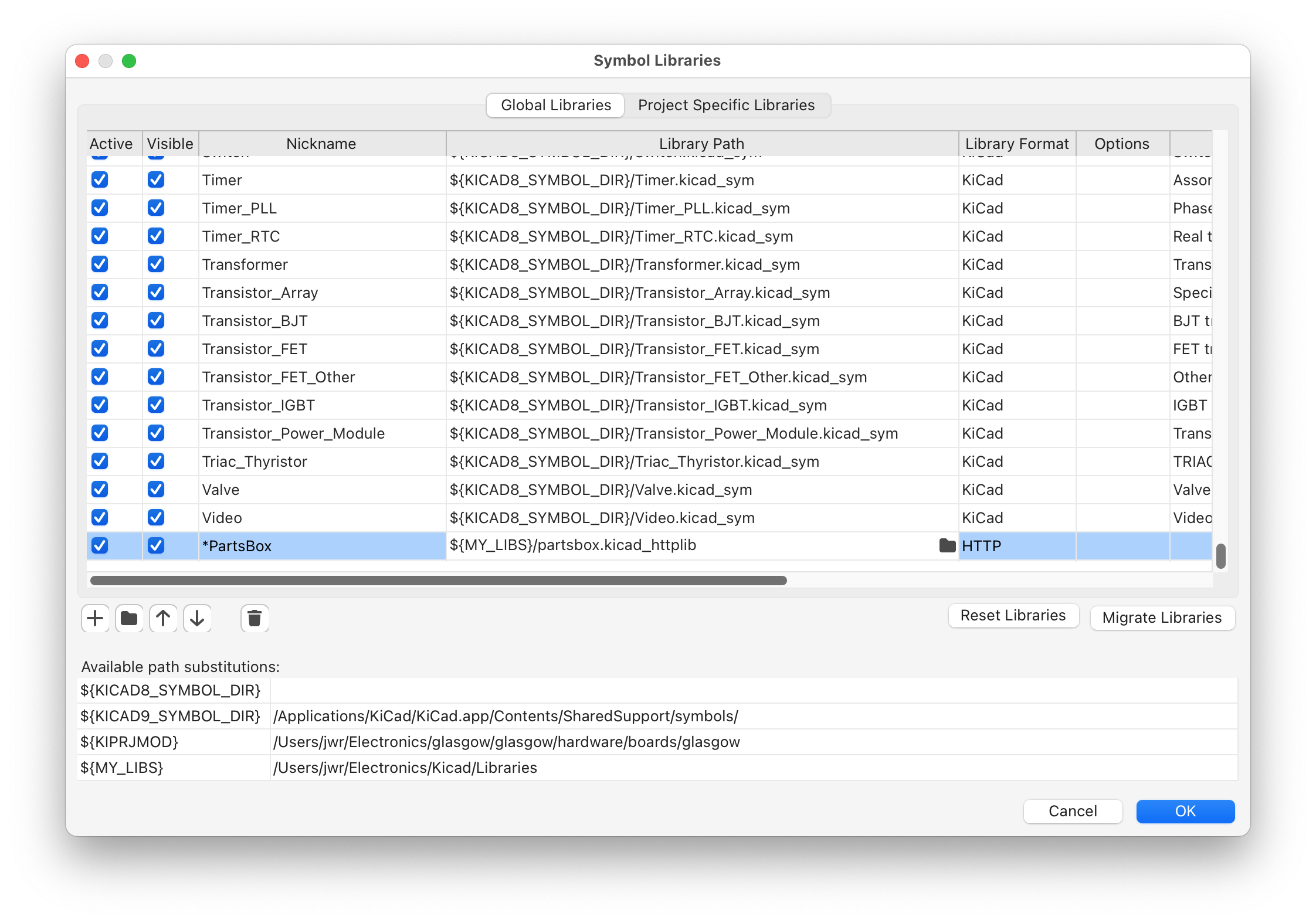
A library nickname that begins with a symbol character sorts first in the Choose Symbol dialog. After that, your categories and parts appear in the Symbol Chooser.
Importing a KiCad BOM back into PartsBox
When you import the BOM into PartsBox, include a column with the PartsBox ID field. It carries the ID Anything™ code, which matches each BOM line to its part with no guessing and no manual matching. For a step-by-step export, see How to Generate a BOM from KiCad.
KiCad integration is in every plan, including the free Maker plan. To use the same library in Altium Designer, see Altium Designer Integration, and for the task-level overview of both, see Use Your Parts in KiCad and Altium.